
Singapore | July 8, 2026
Producing multi-scene videos that are connected can require some high-level editing and considerable production time. Traditional software involves tedious time tracking, adjustments, and manual scene matching. Pippit’s AI-powered generation, along with its built-in editing capabilities, makes this simple. It allows for connected storytelling with structured prompts, scene guidance and efficient refinement tools. This article introduces several practical techniques on how to create seamless multi-scene video that is more consistent and requires less manual labor.
Understanding Multi-Scene AI Video Generation
A connected video sequence is a series of video scenes that have all been stitched together in a logical sequence. All scenes should serve the overarching narrative, and should not create disorientating shifts in the image. The characters, movements, lighting and camera direction are all consistent throughout the video, ensuring continuity of the scene. In traditional editing, users might have to manually trim clips, adjust colors, align movements, and correct transitions. These tasks are time-consuming and require technical expertise. With AI generation, many of these tasks can be streamlined, and scenes can be created that adhere to organized prompts and structured storytelling. Clear instructions are important to keep things logical, and prompt planning is essential. A good prompt should include information on the subjects, actions, setting, movement of the camera, and order of scenes. Organized planning also minimizes unneeded changes and makes for smoother transitions between significant moments in the story.
Seedance 2.5 Features That Reduce Manual Video Editing
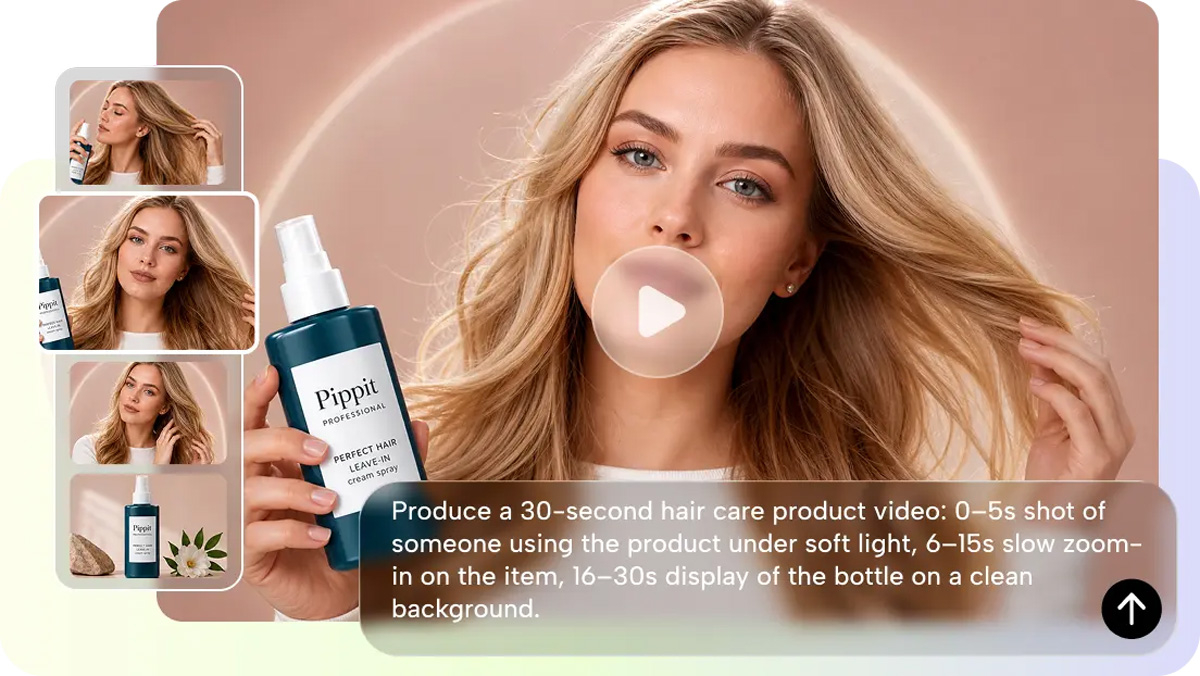
Seedance 2.5 enables connected storytelling with multiple production features in one workflow. It produces videos up to 30 seconds long, and longer connected scenes are simpler to make. Footage extension extends clips without having to recreate the footage. Timestamp-guided prompts enable creators to specify key moments in the start, middle and end. Green screen refinement makes it easier to change the background after generation, and keeps the main subject intact. Multi-format reference support includes images and videos to direct style, composition, subject appearance and mood. High-quality visual consistency enhances lighting, textures, motion and object placement between scenes. These features minimize manual editing and ensure greater continuity in longer video productions.
Steps to Create Smooth Multi-Scene Videos Without Complex Editing in Seedance 2.5
Step 1: Prepare your multi-scene workflow
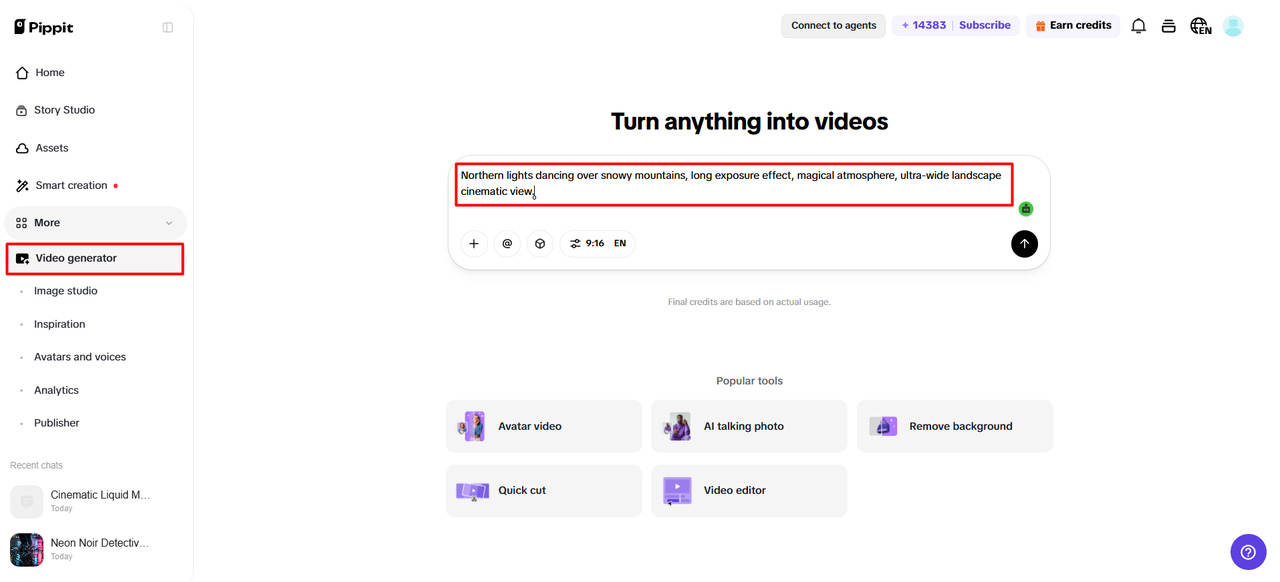
- Sign up for Pippit and open the home page.
2. Select “More” from the left vertical menu bar and choose “Video generator”.
3. Enter a text prompt that describes the scenes, visual style, tone, and camera angles you want throughout the video.
Step 2: Produce seamless scene transitions
- Click “+” to upload the image, video, file, or link you want to include in your project.
- You can also select “Upload a reference video” and choose “Upload” to provide a sample video, helping the AI match its style.
- Pick the “Dreamina Seedance 2.5” model from the list.
- Choose the preferred video length, language, and aspect ratio
- Click “Generate,” and Pippit creates a smooth multi-scene video from your prompt.
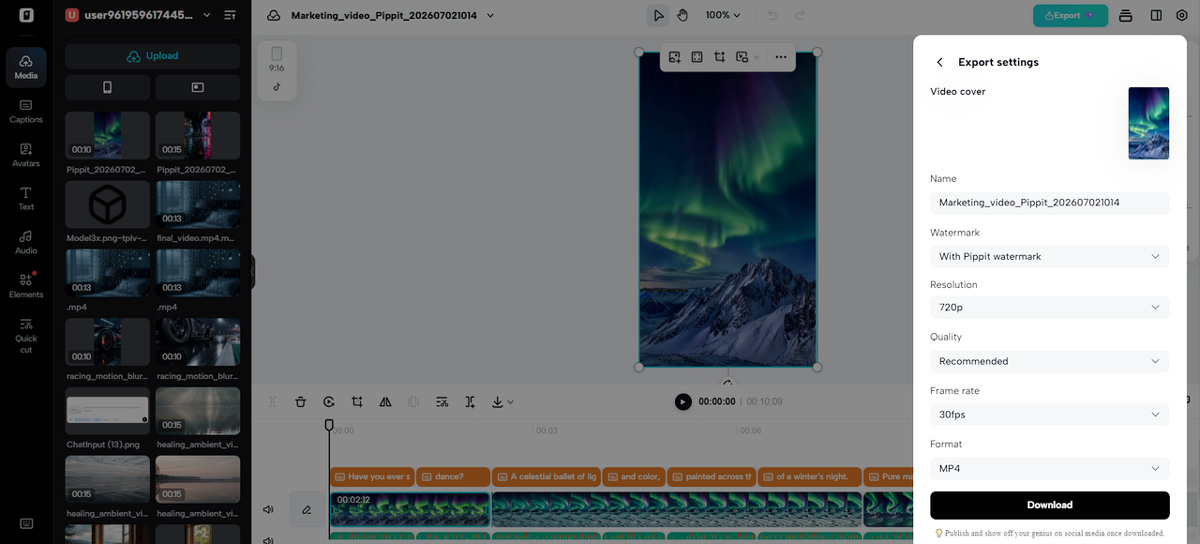
Step 3: Polish and export the sequence
1.Select the completed video and press the Play button to review every scene.
2. Click “Edit more” if you want to crop, stabilize, adjust colors, or replace the background.
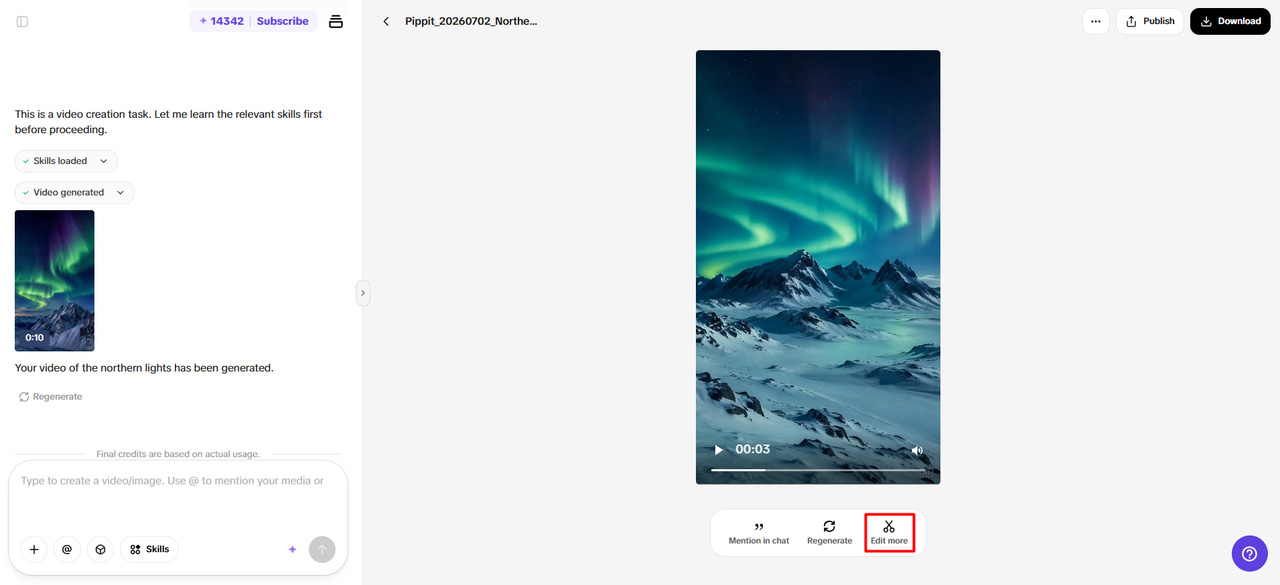
3. Choose “Download” to save the video or “Publish” to post it directly on your social media.
Planning Smooth Scene Transitions Before Generation
Well-planned scenes are more continuous, as the beginnings of a successful scene transition occur before the beginning of the generation process. Before creating prompts, think about the following guidelines:
- Set the purpose of each scene.
- Don’t stop character actions abruptly.
- Use the same direction of the camera for the different moments that are connected.
- Compare lighting in the same two or more scenes.
- Outline transition actions from a chronological standpoint.
- Conduct a natural ending to every scene and set up the next one.
Creating Longer Stories Using Footage Extension
The footage extension is used to extend the footage and maintain the continuity of the image between two or more shots. Rather than creating a new clip, creators can continue ongoing actions within the project. This way, characters are still looking the same, the camera is still in the same position, the lighting remains the same, and the overall flow of the story remains intact. There are extra product interactions, environmental changes or end moments that fit into the extended sequence. With up to 2 rounds of footage extension, Pippit makes longer stories easier to build without restarting production. This also cuts down on the amount of regeneration, the amount of creative effort required, and maintains visual continuity in longer stories.
Organizing AI Video Prompts for Better Scene Progression
Well-structured prompts enhance the progression of the story as each prompt serves as a cue for the next visual moment. Start with a clear introduction that sets the main topic, setting and goal. Keep going with the middle scenes that add actions that make sense and continue the character behaviours and camera movements. Create meaningful conclusions that end a story rather than abruptly. List all descriptions in order, as it helps the generation process to follow its natural progression. Be careful of preview results when exporting. Refine prompts when the movement, lighting or relationships in the scene seem inconsistent. Continuous tweaks can sometimes be better than lots of post-generation editing. Pippit also enables structured prompts in many languages, which simplifies storytelling in the local language for various audiences.
Optimizing Multi-Scene Videos Inside Pippit
Final optimization enhances presentation quality, while maintaining connected storytelling. Background editing lets you edit different environments without re-creating complete scenes. Stabilization tools help to limit unwanted motion and enhance viewing comfort for continuous sequences. The color adjustments ensure that the brightness and tone of the image are balanced in each scene. Cropping enables various aspect ratios for social media, presentations, ads and other publishing formats. Export settings offer flexible output options for various platforms without compromising the visual quality. Once the project is finished, review it prior to publishing to see if there are some small continuity problems that need a little tweaking. Through careful refinement, the final video result will have smooth transitions, consistent visuals, and a professional viewing experience.
Conclusion
Making multi-scene videos that are connected no longer requires having complex video editing software or advanced video production skills. Structured generation, scene planning, footage extension, reference-guided creation and integrated editing capabilities make the entire workflow easy with Pippit. Structured prompts, visual guidance, and effective refinement tools make it easier to create professional results with less handwork. These capabilities enable more seamless storytelling, enhanced continuity, and streamlined content creation for campaigns, product videos, social media, and other creative visual projects.











[…] Create Smooth Multi-Scene Videos Without Complex Editing in Pippit […]
Comments are closed.